
You can now include one or more photos when sending a hilight! Photos are a powerful way to celebrate achievements, recognize special moments, and bring hilights to life. Before uploading any photos, it’s important to make sure they follow your district’s photo-sharing policies.
Before You Upload: Confirm Photo Sharing Policies at your District
Before uploading a photo to a hilight, take a moment to confirm that you are allowed to share it within your district.
Every district has its own guidelines around photo sharing—especially when students are involved. Some districts may restrict sharing student images, names, or identifying information.
When you upload a photo, you’ll be asked to check a box confirming:

- You have permission to share the photo
- The photo follows your district’s policies
- The photo is appropriate for internal district visibility
Photo Requirements & Limits
Supported File Types
-
JPG
-
PNG
File Size Limit
-
Maximum 10 MB per photo
Photo Quantity
-
Up to 10 photos per hilight
-
You won’t be able to upload more than 10
How to upload photos on a hilight
-
Start creating a new hilight on the Recognition tab. Fill in the recipient(s), core value, and the hilight text.
-
Click the "Upload Photos" button towards the bottom of the "Send a hilight" form

-
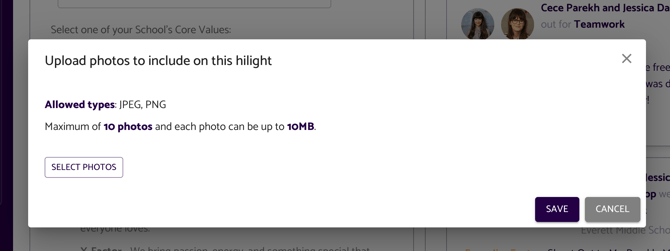
Click on the "Select Photos" button in the popup to select up to 10 JPG or PNG images.
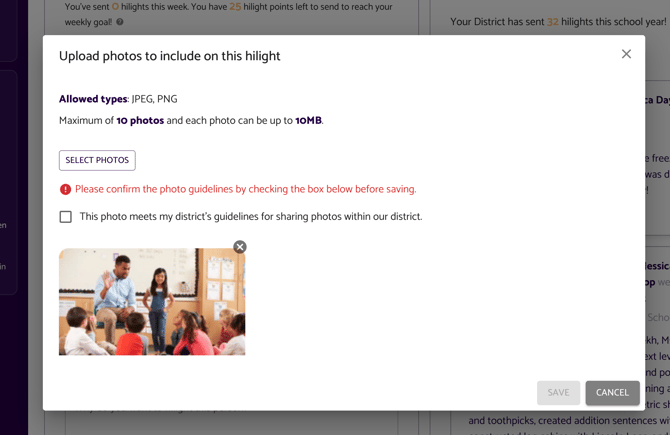
Review your photos carefully and check the confirmation box confirming that the photos you are uploading meet your district's photo-sharing guidelines.
- If you need to make any changes to the photos you selected, you can click the "Edit Photos" button to re-open the popup. You can then remove selected photos by clicking on the "x" icon or select additional photos by clicking on the "Select Photos" button.
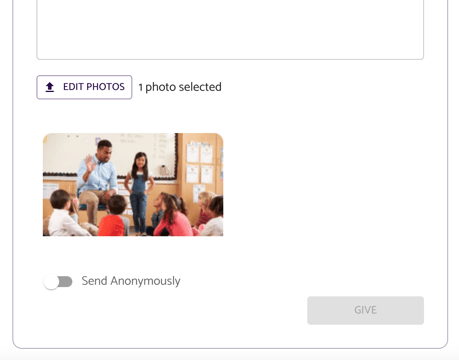
- Send your hilight 🎉
How to edit photos on a hilight after you've sent it
If you sent a hilight, but realized after the fact that one or more of the photos should be removed, you can do so on the Bulletin feeds.
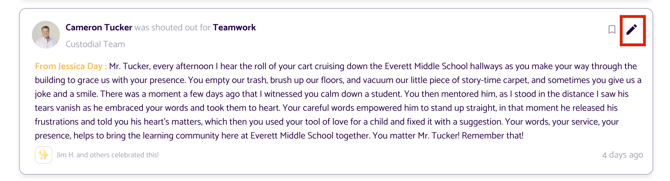
1. Go to the Bulletin tab and find your hilight on one of the feeds. It's probably easiest to go to your personal feed to view the hilights sent by you. You'll see a pencil icon in the upper right corner of any hilights sent by you. Click the pencil to open the Edit hilight popup.
2. Click the "x" icon on any of the photos that you would like to remove, and then click confirm. The photos will no longer show up on the hilight.
Why photos make hilights even more powerful ✨
Photos help turn hilights into lasting memories!
Whether it’s a classroom celebration, a staff milestone, a team accomplishment, or a special moment worth recognizing, photos:
-
Add context and emotion
-
Make recognition feel more personal
-
Help moments stand out and feel remembered
When shared thoughtfully and responsibly, photos can make hilights even more meaningful for the people being celebrated and for the entire district.
Thank you for helping keep hilights joyful, respectful, and aligned with your district’s values.