
The new Reply button makes it easy to send a private thank-you email directly to the colleague who recognized you, without having to open your inbox and start from scratch.
What is the Reply button?
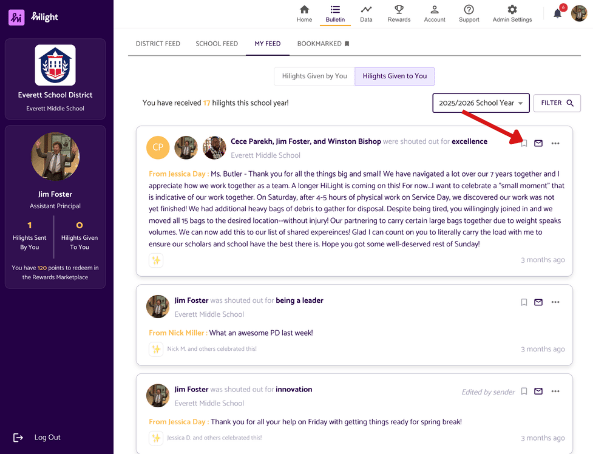
When you receive a hilight, you'll now see a ✉️ Reply button on the hilight card in your Bulletin feeds and in your Notifications inbox. Clicking it opens a pre-addressed email in your mail app, ready to send — with the subject line and a warm message already filled in for you.
It's completely private. Your reply goes only to the sender, and no one else on the platform can see it.
How to reply to a hilight
- Find a hilight you received in the Bulletin feeds or your Notifications inbox.
- Click the ✉️ Reply button in the top-right corner of the hilight card. On mobile, tap the envelope icon (hover over it to see the tooltip).
- Your mail app will open with the sender's email address, subject line, and a pre-written message already filled in.
- Personalize the message however you like, then hit send, just like any regular email!
The Reply button only appears on hilights where you are the recipient. Senders and other staff members browsing the feed won't see it.
Where you'll find it
- Bulletin feeds: the ✉️ Reply button appears in the top-right corner of the hilight card.
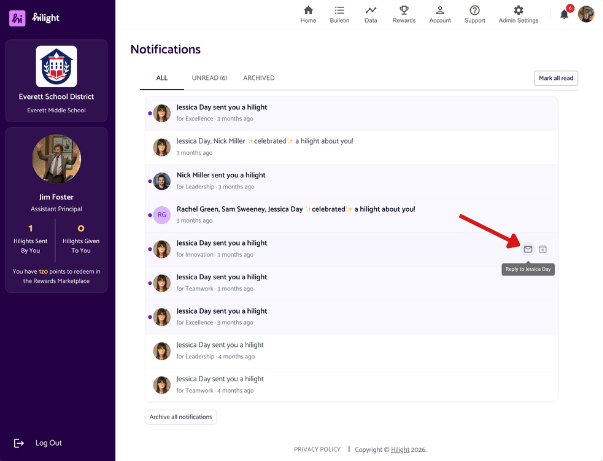
- Notifications inbox: hover over a hilight received notification and the Reply button will appear alongside the archive icon.
What if I was highlighted along with other people?
No problem! Each recipient sees their own Reply button, and any reply you send goes privately to the sender only. Other recipients won't be copied in or notified.
Have any questions or need help? Reach out to us at support@hilightedu.com and we'd be happy to help!