
A hilight means more when it uses the name your colleagues actually call you. The name in your district's staff directory isn't always that name. Maybe you're Robert on paper and Bob in the hallway, or Jessica on your badge and "Coach" to everyone else.
Now you can add a preferred name in Hilight, so the recognition you get uses the name you really go by.
What is a preferred name?
It's the first name you'd like colleagues to see in Hilight. Your last name stays the same, so a Robert Smith simply becomes Bob Smith.
Nothing else about your account changes. Your original first name stays on file, and your district's staff directory and your login stay exactly as they are.
How to add your preferred name:
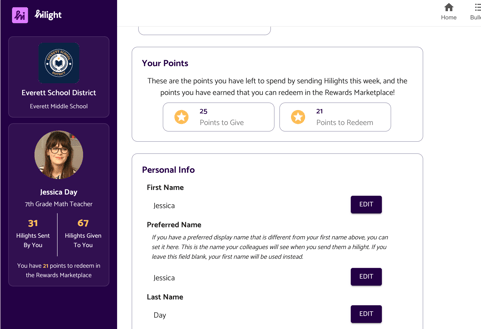
- Go to Account and open the Profile tab.
- Find Preferred Name, right below First Name.
- Click Edit.
- Type the first name you go by. You don't need to add your last name, because Hilight keeps that for you.
- Click Save.
You'll see a quick confirmation once it's saved, and your new name is ready to go!
Where will my preferred name show up?
Just about everywhere colleagues see you in Hilight:
- Hilight cards in the Bulletin feeds and on the monitor display
- Recipient lists when someone sends you a hilight
- Notifications and data dashboards
- Your profile, plus the initials shown when you don't have a profile photo
No one has to guess which name to search for. Whether a colleague types Robert or Bob, they'll find you.
My account details are locked. Can I still add a preferred name?
Yes, you can! Your name and other details might come from Clever, ClassLink, or your district's staff directory, but Preferred Name always stays editable. It's stored in Hilight, separate from your district's records, so you can use the name you go by without changing anything on the district's side.
If your original name is wrong in those records, your district's technology administrator can help get it updated.
Can an admin set a preferred name for someone?
Yes. School and district admins can do it from Admin Settings → Manage Users:
- Find the staff member and click the Edit pencil icon.
- Enter their Preferred Name.
- Click Save.
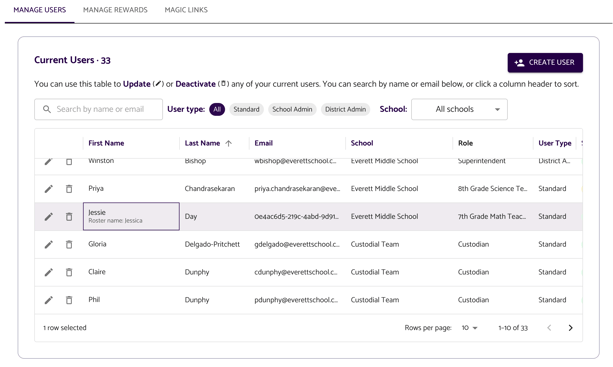
In the Manage Users table, the First Name column shows each person's preferred name. When it's different from their roster name, a smaller Roster name: line appears underneath, so you can always match the person to their district records.
Can I change it later?
Of course. Go back to Account → Profile → Preferred Name, click Edit, enter your new name and click Save.
To go back to your original first name, clear the field and click Save.
Questions, or want a hand getting set up? Reach out to us at support@hilightedu.com. We're always happy to help.